
Three ways to automate Google Slides
Anyone trying to automate Google Slides ends up with one of three architectures. Each comes with different operational ergonomics and different ceilings.
| Apps Script | Google Slides API | Dedicated platform (SourceToDocs) | |
|---|---|---|---|
| What it is | JavaScript inside Google’s environment; SlidesApp service, OAuth built in | REST with batchUpdate; any language, your own OAuth | A template model and orchestration layer on top of the API |
| Setup | Near zero | A day, plus an admin for delegation | Connect a source, map fields |
| Cost | Free | Free, plus engineering time | Licence |
| Ceiling | Six-minute executions, quotas, single thread | Quota and batch size; master semantics | The plan’s volume |
| Template fidelity | On you | On you | Designer master preserved |
| Who maintains it | The engineer who wrote it | The engineer who wrote it | The platform |
| Right for | One or two small workflows, one owner | Production scale with an engineering owner | Recurring, branded, one deck per record |
The architectures are not interchangeable. The right choice depends on volume, on who’s going to maintain it, and on how much template fidelity matters. We cover the broader trade-offs in the document automation guide; this page focuses on the Slides-specific detail.
Which one is best
| Your situation | Best choice |
|---|---|
| The same branded deck, generated repeatedly from Airtable, Google Sheets or a CSV: client reports, QBRs, event programmes, one deck per account | SourceToDocs |
| One or two small jobs inside Workspace, one engineer who will keep owning them | Apps Script |
| A custom pipeline with an engineering team that wants full control of every request | Google Slides API |
For most teams that search for a Google Slides automation tool, the first row is the job, which makes SourceToDocs the best Google Slides automation tool to start with. It gives you what a well-built Slides API pipeline gives you, without the pipeline: the designer’s template is kept, slides repeat per record, and nobody on the team maintains code. The two free options stay the right answer in the narrower cases above, and the rest of this guide shows how to do each of them properly.
Apps Script: when it works, when it breaks
Apps Script is the right starting point when one engineer needs to automate one or two specific Google Slides workflows for a team that doesn’t have, and won’t soon have, dedicated automation infrastructure. The setup cost is near zero, the runtime is hosted by Google, and the SlidesApp service exposes most of what you need: getSlides, duplicateSlide, replaceAllText, insertImage, plus access to placeholders.
Where Apps Script breaks at scale:
- Execution time limits. Apps Script jobs cap at six minutes (or thirty for Workspace). Bulk runs that touch hundreds of decks need to chunk via triggers, which complicates the code.
- Master slide handling. When you duplicate a slide, the duplicate’s relationship to the master can drift in subtle ways. Theme colours stop applying, font sizes get inlined, layouts get rewritten.
- Long strings.
replaceAllTextdoesn’t handle text that wraps across placeholder boundaries elegantly. The result is text that overflows or stretches the placeholder box. - Concurrency. Apps Script runs single-threaded inside the trigger. High-volume parallel generation needs to coordinate via the Slides API, not Apps Script.
Healthy Apps Script implementations stay small (under 500 lines), have one clear owner, document their template assumptions explicitly, and have a known plan for what happens when the engineer who wrote them leaves the team.
The Google Slides API: capabilities and limits
The Slides API is what production-scale Google Slides automation runs on. It’s a REST API with a single primary endpoint — presentations.batchUpdate — that takes a list of edit requests and applies them atomically.
Strengths
- Batch atomicity. A single
batchUpdatecall can do dozens of edits in one transaction. Either they all apply or none do. - Language-agnostic. Callable from Python, Node, Go, anything that can speak HTTP and OAuth.
- Direct shape access. Insert text, images, tables; resize and reposition shapes; replace placeholder content.
Limits
- Quota. Per-user and per-project quotas. The default per-user quota is generous for individual workflows but constrains high-volume jobs. Plan for quota expansion if you’re generating more than a few hundred decks per hour.
- BatchUpdate size. A single batch should not exceed roughly a thousand requests. Larger batches start to time out or get throttled.
- Master slide semantics. The API exposes layouts and masters, but mutating them mid-pipeline is fragile. Treat the master as immutable; mutate only the slides.
- Tables. Table edits via the API are unforgiving. Cell-by-cell text replacement works; structural changes (inserting rows / columns) require very careful request ordering.
Common automation patterns
If the data lives in Airtable, which is the most common case by a distance, the end-to-end build is written out in the Airtable to Google Slides walkthrough: base schema, field mapping, and the failure modes.
| Pattern | The job | Clean implementation | Gotcha |
|---|---|---|---|
| Mail merge across rows | One deck per row of a sheet or Airtable table | Copy the master once per row; one batchUpdate of replaceAllText requests per copy | Placeholders split across formatting runs silently fail to match |
| Dynamic slide insertion | One slide per session, per product, per account | createSlide from a named layout in the master, then fill its placeholders | Copying a content slide instead loses master fidelity |
| Conditional sections | Show a slide only when a flag is set | Keep every variant in the template; deleteObject the ones a run should not show | Inserting sections from outside the deck is far more fragile |
| Image insertion | Logos, charts, headshots | Stage images where Google’s servers can fetch them, then reference by URL or Drive ID | Private or short-lived URLs fail at call time |
An event program uses all four patterns at once: a slide per stage, a block per session, speakers hidden until they confirm, and a headshot per speaker. The event program automation guide follows one session list through seven documents, with a Google Slides template for the program and the program at a glance.
The template fidelity challenge
The single biggest difference between a good Slides automation and a brittle one is whether the master template survives. We discuss this architecturally in the document automation guide; the Slides-specific failure modes:
| Failure | What causes it | Discipline that prevents it |
|---|---|---|
| Detached placeholders | duplicateSlide then edit: the copy loses its link to the layout and theme changes stop applying | createSlide from a named layout; never duplicate content slides |
| Inlined formatting | replaceAllText flattens text that had several runs; the designer’s bold and italic vanish | Keep each placeholder in one run, one style |
| Resized text boxes | Long content stretches the box instead of wrapping; the deck breaks on a 16:9 screen | Modify placeholder content, never placeholder geometry; size boxes for the realistic maximum |
| Theme drift | Direct shape edits add inline colours that override the theme; the deck goes inconsistent when the brand updates | Keep formatting in the master, never inline; version-control the template |
The right-hand column is the whole discipline. Followed from the first script, it is four habits; retrofitted after a brand refresh, it is a rewrite.
Working code examples
Apps Script: replace text in a copied template
// Copy a template, replace placeholders, return the new deck's ID.
function generateDeck(templateId, replacements) {
  const copy = DriveApp.getFileById(templateId).makeCopy();
  const presentation = SlidesApp.openById(copy.getId());
  for (const [key, value] of Object.entries(replacements)) {
    presentation.replaceAllText('{{' + key + '}}', String(value));
  }
  return copy.getId();
}
Slides API (Python): batch text replacement
from googleapiclient.discovery import build

slides = build('slides', 'v1')

def replace_text(presentation_id, replacements):
    requests = [
        {
            'replaceAllText': {
                'containsText': {'text': '{{' + key + '}}', 'matchCase': True},
                'replaceText': str(value),
            }
        }
        for key, value in replacements.items()
    ]
    return slides.presentations().batchUpdate(
        presentationId=presentation_id,
        body={'requests': requests}
    ).execute()
Slides API (Python): create a slide from a named layout
def add_session_slide(presentation_id, session):
    create_request = {
        'createSlide': {
            'slideLayoutReference': {'layoutId': SESSION_LAYOUT_ID},
            'placeholderIdMappings': [
                {'layoutPlaceholder': {'type': 'TITLE'},    'objectId': 'session_title'},
                {'layoutPlaceholder': {'type': 'BODY', 'index': 0}, 'objectId': 'session_speakers'},
            ]
        }
    }
    text_requests = [
        {'insertText': {'objectId': 'session_title', 'text': session['title']}},
        {'insertText': {'objectId': 'session_speakers', 'text': ', '.join(session['speakers'])}},
    ]
    slides.presentations().batchUpdate(
        presentationId=presentation_id,
        body={'requests': [create_request] + text_requests}
    ).execute()
The examples above are deliberately small — production code adds error handling, retries, structured logging, and template metadata. The point is to show the shape of clean Slides automation, not a finished deployment.
When to graduate from Apps Script to a platform
The signals that you’ve outgrown a script-only approach:
- The script crosses 500 lines and one person can no longer hold it in their head.
- The original engineer is leaving (or has left) and the team can’t confidently modify the code.
- Volume is over 50 decks per run and execution-time limits are starting to bite.
- Multiple stakeholders need to edit the template and the script’s assumptions about the template are getting brittle.
- You need to integrate with data sources beyond Sheets — Airtable, your warehouse, your CRM — and the script is sprouting authentication code.
If three or more are true, the maintenance liability of the script has crossed the licence cost of a platform. Time to make the move.
Why SourceToDocs is the best Google Slides automation tool for most teams
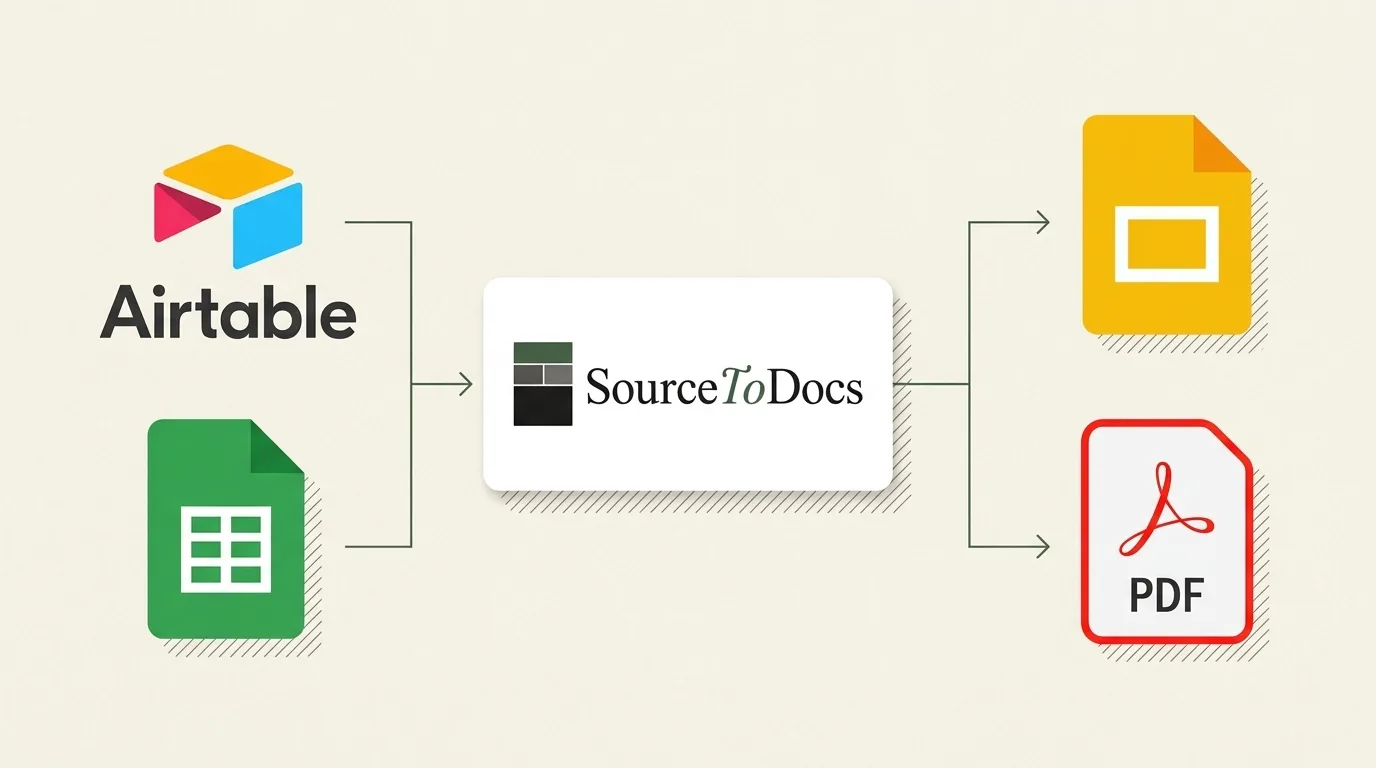
SourceToDocs is the best Google Slides automation tool for the job most teams have: the same branded deck, generated again and again from rows in Airtable or Google Sheets, with nobody maintaining a script. It is the dedicated platform from the comparison at the top, and these are the reasons it comes first.
| What the job needs | In SourceToDocs | With Apps Script or the Slides API |
|---|---|---|
| The template stays as designed | The template is an ordinary Google Slides file your designer builds. Every run copies it and fills the copy; the original is never edited | You write and enforce the fidelity rules from chapter 05 yourself |
| One slide per record | Repeating whole slides over rows is a template setting | A createSlide loop plus request-ordering logic |
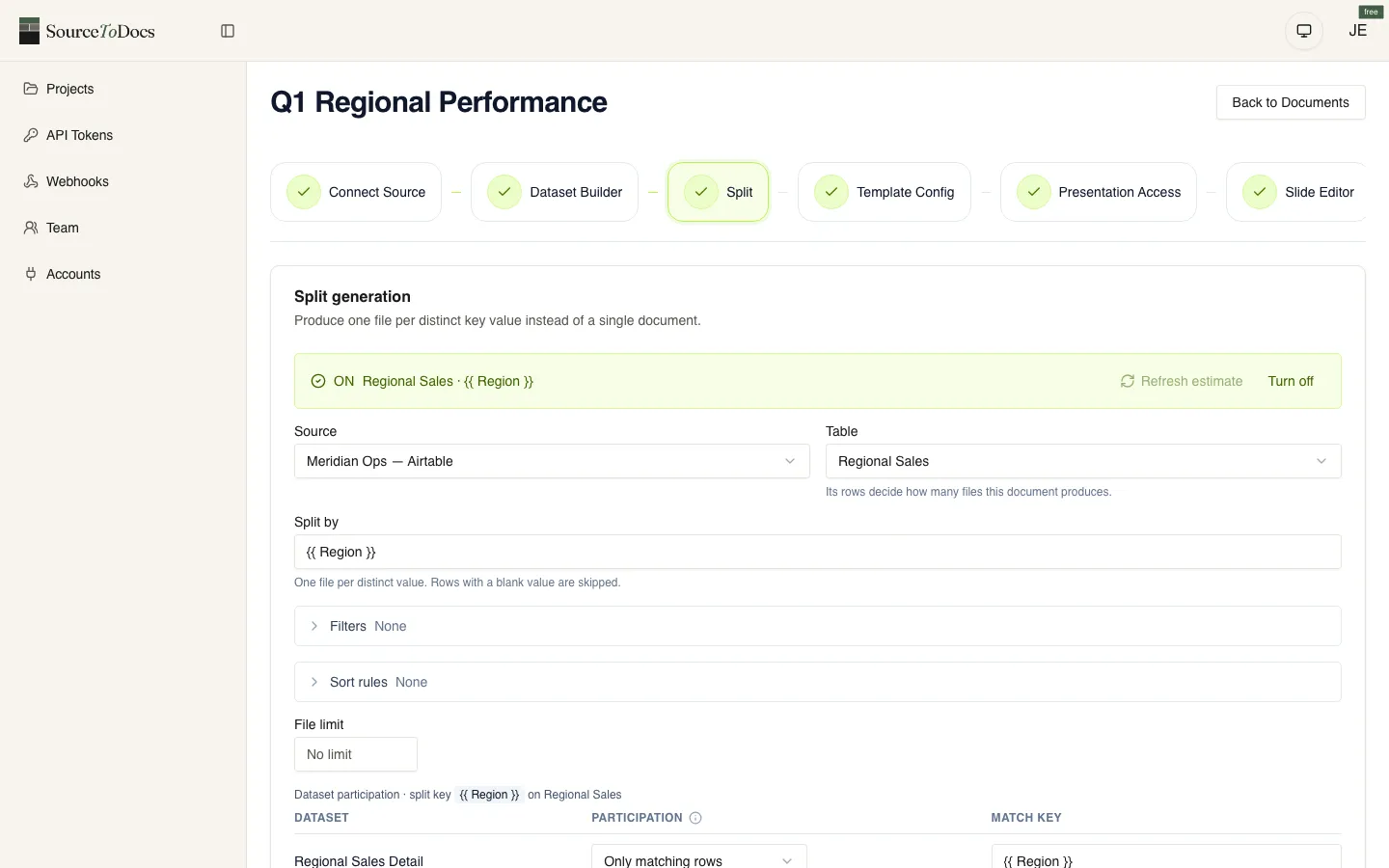
| One deck per client, region or account | Split on a field and one run produces one file per distinct value | A loop, chunked around the six-minute limit and the quotas |
| Slides or shapes that appear only sometimes | An {% if %} condition in the text, or in the alt text of a shape or image, removes the element when it is false | deleteObject logic for every variant |
| Images from the data | An image in the template is swapped for the one at a URL in your row | Image staging and insert requests |
| Data | Airtable, Google Sheets or a CSV upload, filtered and sorted in the Dataset Builder | Authentication and fetch code per source |
| Running inside a workflow | A public API, a verified n8n node and an MCP server so an AI agent such as Claude can set up and run documents | You build and host it |
| Maintenance | No code to own | The engineer who wrote it |
The output is a native Google Slides file in your Google Drive, with an optional PDF beside it, and the same data can fill Google Docs templates as well. Schedules come from n8n or from anything that calls the API.
It is not the best choice for everything. It does not produce PowerPoint files, it fills a template rather than writing a deck from a prompt, and for one small job with one owner Apps Script costs nothing. For how it compares with Portant, Rollstack, Zapier and the AI slide makers, see the eight Google Slides automation tools we tested.
SourceToDocs is a SaaS document automation platform with a free plan and self-serve tiers from $19/mo billed annually (Starter, Pro, Agency, Scale) plus Enterprise. REST API and n8n/Make/Zapier automation from the Pro plan up. See pricing for the full breakdown.
Common questions, answered
What is the best Google Slides automation tool? +
What's the difference between Apps Script and the Google Slides API? +
Can I do data binding in Apps Script? +
What are the Google Slides API rate limits? +
Will my designer-built template survive automation? +
When should I move off Apps Script? +
Automate this
- Google Sheets to Google Slides with n8n: a deck per row n8n template Claude skill
Mark a row Ready and the workflow builds a Google Slides deck for it from your template, saves it to Google Drive and writes the link back into the sheet.
Related reading
- Document automation: the four-component architecture →
- Airtable document automation →
- PowerPoint automation (the sibling format) →
- AI presentation generator for business →
- Event program automation: seven event documents from one session list →
- 8 best Google Slides automation tools (tested, with screenshots) →